
GitLab is a comprehensive, web-based DevOps platform that provides a single application for the entire software development lifecycle. It offers Git repository management, CI/CD pipelines, security, and project management tools, allowing teams to develop, secure, and operate software efficiently.
GitLab has specific installation requirements.
Storage
The necessary storage space largely depends on the size of the repositories you want to have in GitLab. As a guideline, you should have at least as much free space as all your repositories combined.
The Linux package requires about 2.5 GB of storage space for installation. When combined with PostgreSQL, logs, temporary files, and operating system overhead, plan for at least 40 GB of disk space for a basic GitLab installation with no repository data. For storage flexibility, consider mounting your hard drive through logical volume management. You should have a hard drive with at least 7,200 RPM or a solid-state drive to reduce response times.
Because file system performance might affect the overall performance of GitLab, you should avoid using cloud-based file systems for storage.
CPU
CPU requirements depend on the number of users and expected workload. The workload includes your users’ activity, use of automation and mirroring, and repository size.
For a maximum of 20 requests per second or 1,000 users, you should have 8 vCPU. For more users or higher workload, see reference architectures.
Memory
Memory requirements depend on the number of users and expected workload. The workload includes your users’ activity, use of automation and mirroring, and repository size.
For a maximum of 20 requests per second or 1,000 users, you should have 16 GB of memory. For more users or higher workload, see reference architectures.
In some cases, GitLab can run with at least 8 GB of memory. For more information, see running GitLab in a memory-constrained environment.
PostgreSQL
PostgreSQL is the only supported database and is bundled with the Linux package. You can also use an external PostgreSQL database which must be configured correctly.
Depending on the number of users, the PostgreSQL server should have:
- For most GitLab instances, at least 5 to 10 GB of storage
- For GitLab Ultimate, at least 12 GB of storage (1 GB of vulnerability data must be imported)
For the following versions of GitLab, use these PostgreSQL versions:
| GitLab version | Helm chart version | Minimum PostgreSQL version | Maximum PostgreSQL version |
|---|---|---|---|
| 18.x | 9.x | 16.5 | 17.x (tested against GitLab 17.10 and later) |
| 17.x | 8.x | 14.14 | 16.x (tested against GitLab 16.10 and later) |
| 16.x | 7.x | 13.6 | 15.x (tested against GitLab 16.1 and later) |
| 15.x | 6.x | 12.10 | 14.x (tested against GitLab 15.11 only), 13.x |
Minor PostgreSQL releases include only bug and security fixes. Always use the latest minor version to avoid known issues.
source: https://docs.gitlab.com/install/requirements/
Install Gitlab as Operator on Openshift
First, go to the OpenShift console in administrator mode, Operators>OperatorsHub, and search for GitLab.
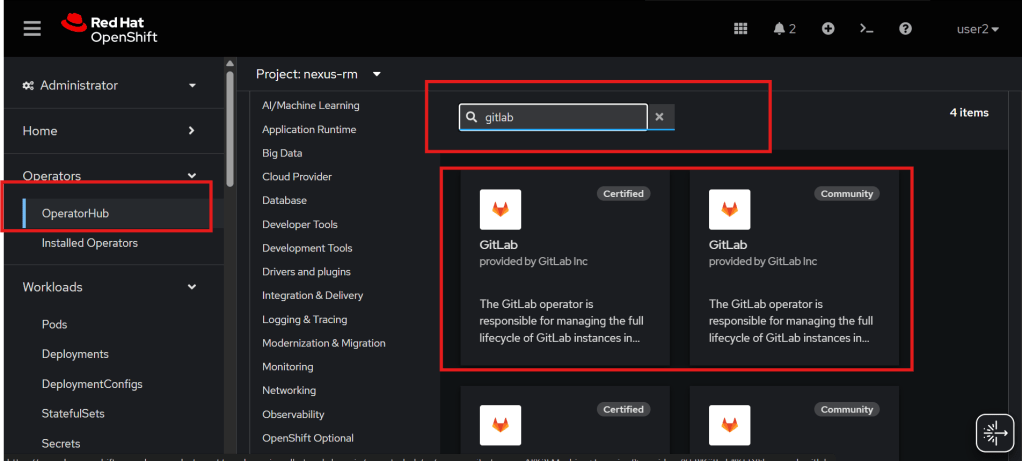
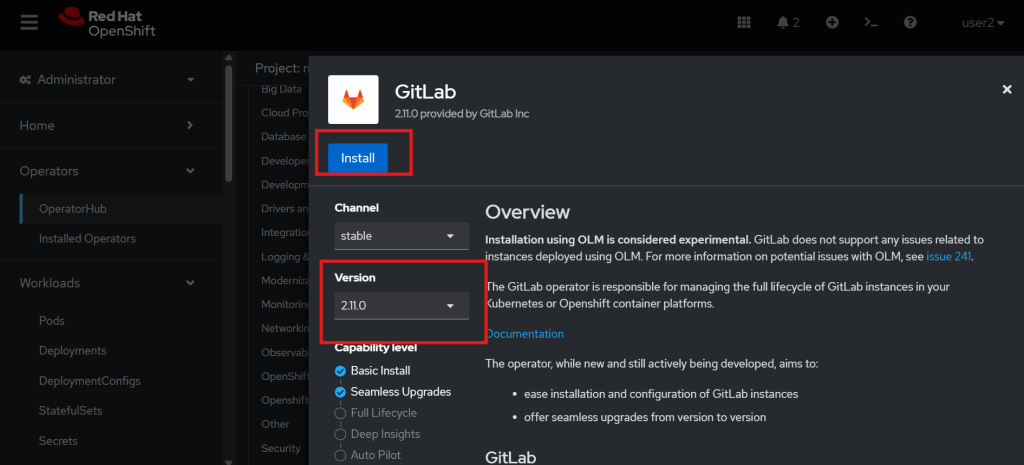
Click on the operator and choose the version you would like, and install.
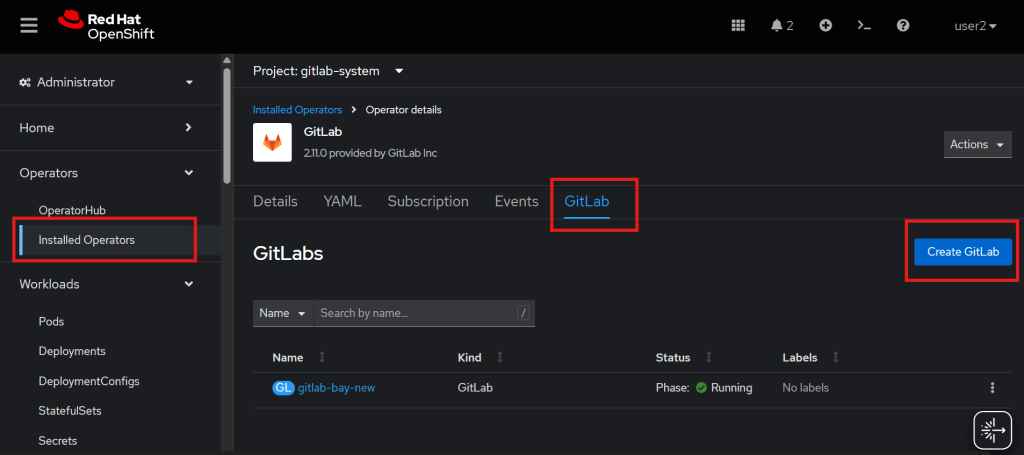
After the operator is installed, we can create a GitLab instance by click create GitLab on Installed Operators>GitLab>Create GitLab.
You can create an instance by filling the form or by a YAML file with custom configuration.
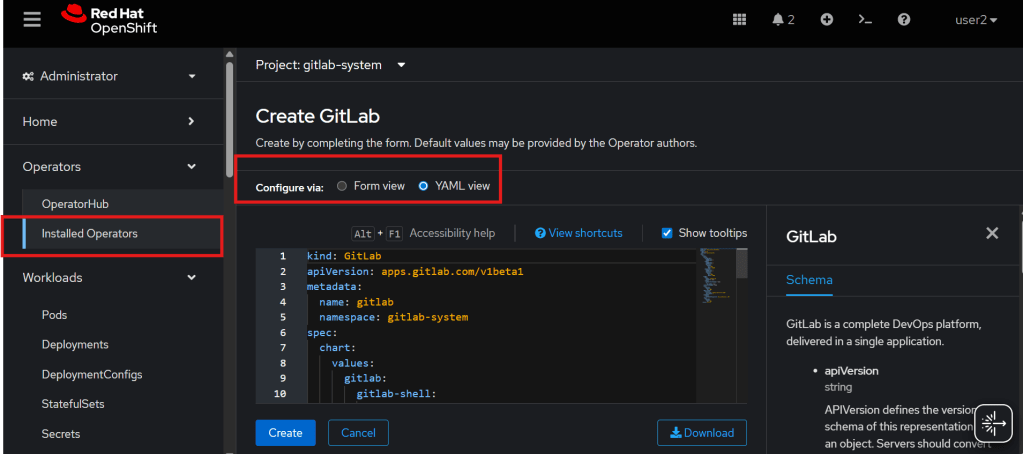
Custom configuration we need to take a note.
global:
  externalUrl: 'https://gitlab-bay-new.apps.cluster-ocp-domain.com'
  hosts:
    domain: apps.cluster-ocp-domain.com
    gitlab:
      host: gitlab-bay-new
    hostSuffix: null
  ingress:
    configureCertmanager: false
    https: true
    tls:
      secretName: null
After creating a new instance, the GitLab Manifest pod will be spawned.
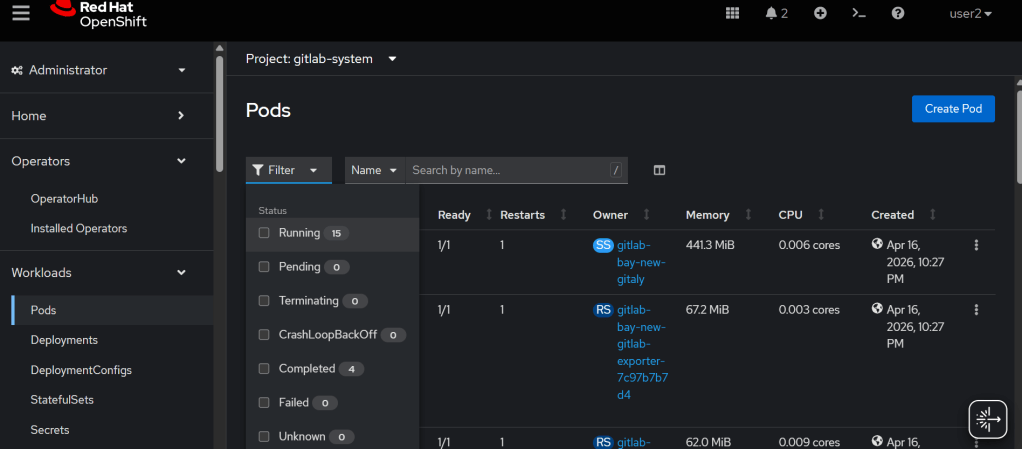
We can expose GitLab by creating a route pointing to svc/webservice port workhorse.
kind: Route
apiVersion: route.openshift.io/v1
metadata:
  name: gitlab-bay-new
  namespace: gitlab-system
spec:
  host: gitlab-bay-new.apps.cluster-ocp-domain.com
  path: /
  to:
    kind: Service
    name: gitlab-bay-new-webservice-default
    weight: 100
  port:
    targetPort: http-workhorse
  tls:
    termination: edge
  wildcardPolicy: None
Access the GitLab web using the host for the route we created before.
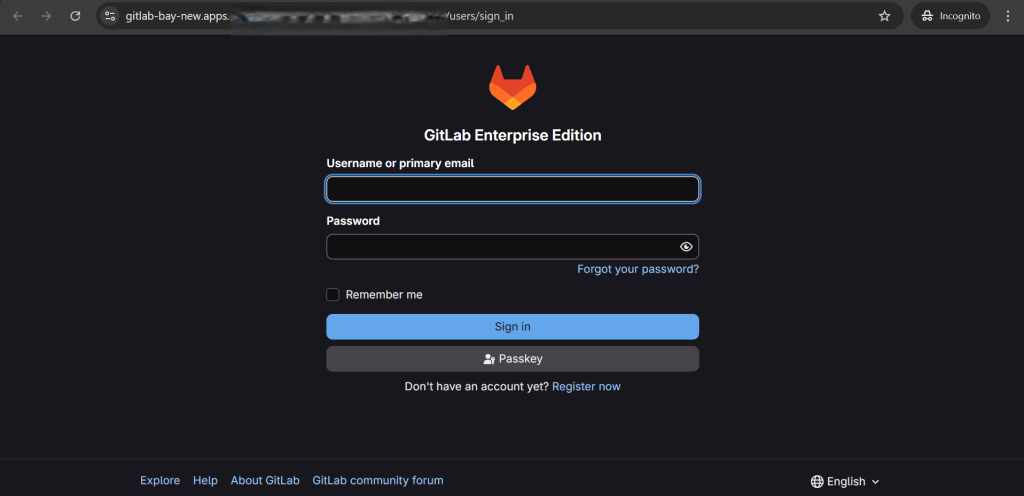
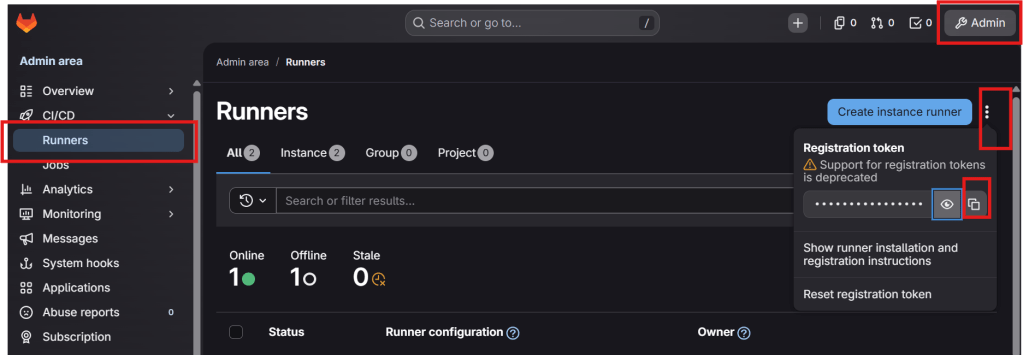
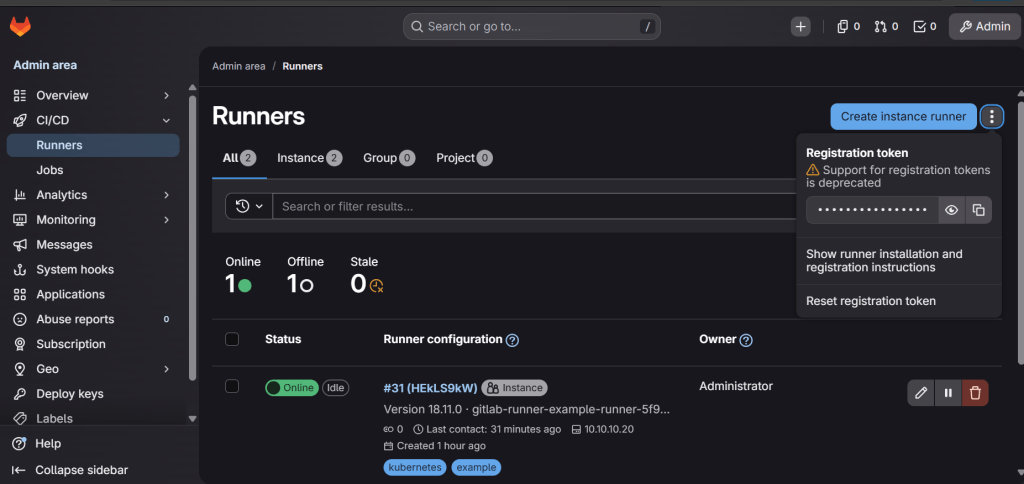
Log in with user root, credentials stored on secret. Copy the registration token for the runner and keep it for later.
Install GitLab Runner as Operator on Openshift an Register to GitLab
First, go to the OpenShift console in administrator mode, Operators>OperatorsHub, and search for GitLab.
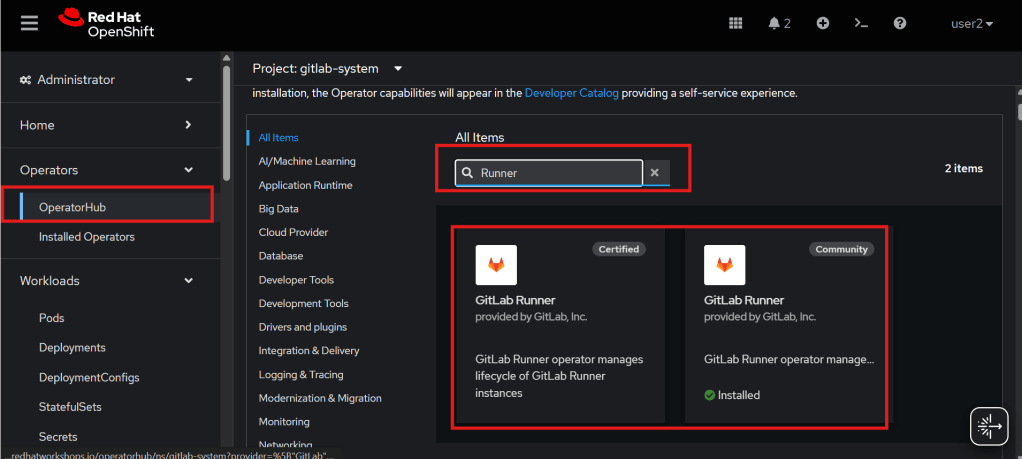
Click on the operator and choose the version you would like, and install.
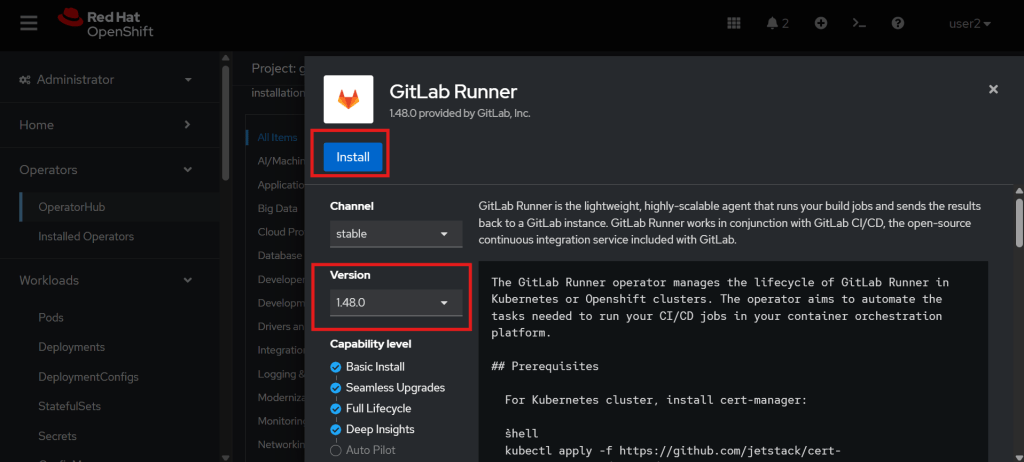
After the operator is installed, we can create a GitLab instance by click create GitLab on Installed Operators>GitLab>Create GitLab.
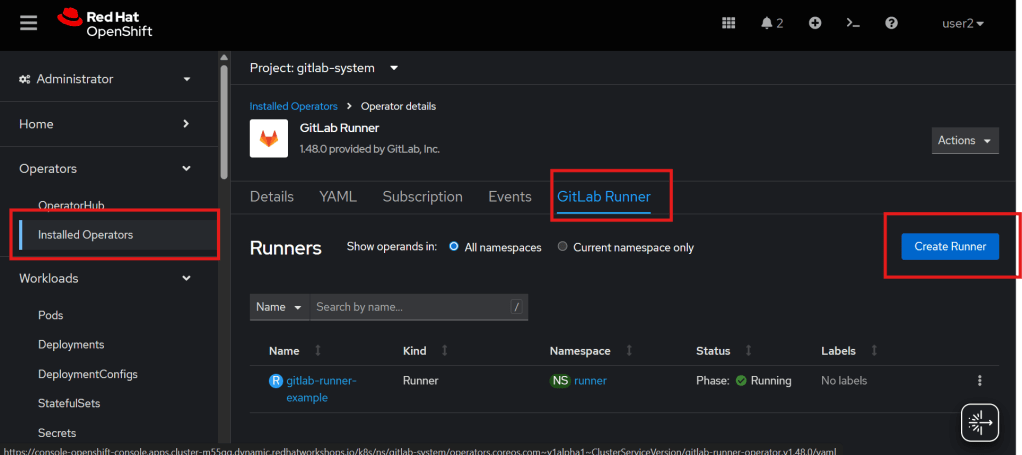
You can create an instance by filling the form or by a YAML file with custom configuration.
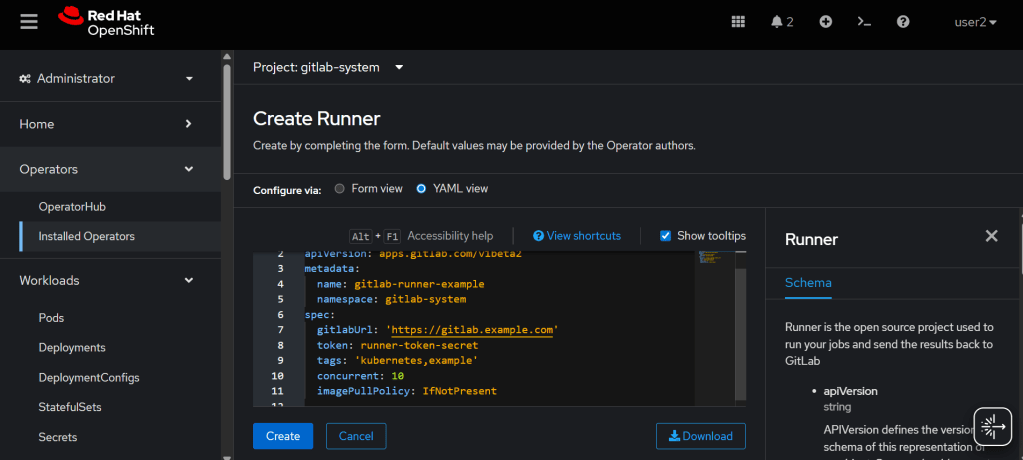
Create a secret for the token first.
oc create secret generic runner-token-secret \
  --from-literal=runner-registration-token=YOUR_RUNNER_TOKEN \
  -n openshift-operators
Apply custom resource configuration for the runner.
apiVersion: apps.gitlab.com/v1beta2
kind: Runner
metadata:
  generation: 1
  name: gitlab-runner-example
  namespace: runner
spec:
  cloneURL: 'https://gitlab-bay-new.apps.cluster-ocp-domain.com/'
  concurrent: 10
  gitlabUrl: 'https://gitlab-bay-new.apps.cluster-ocp-domain.com/'
  imagePullPolicy: IfNotPresent
  tags: 'kubernetes,example'
  token: runner-token-secret
After creation, make sure all pod runner running.
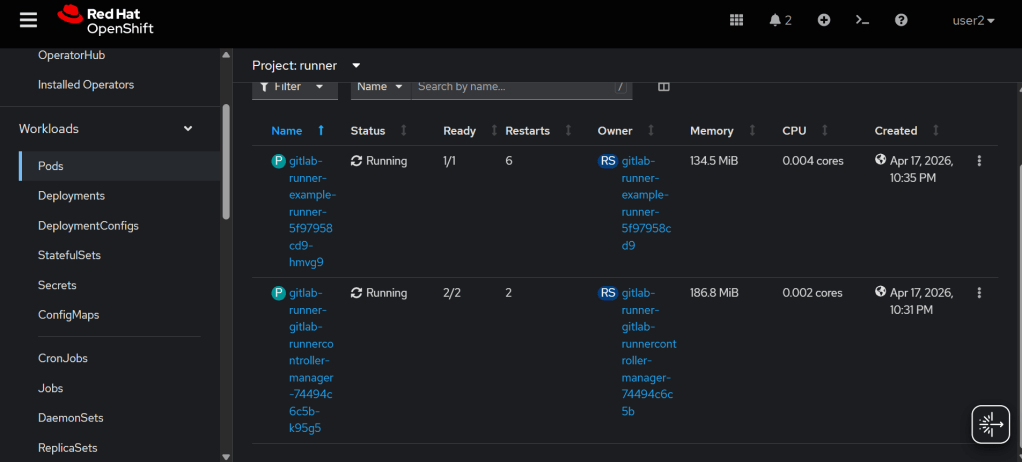
And runner already appear on GitLab.
 Fatkhullah Baihaqy